
How does Adobe AI video editing work?
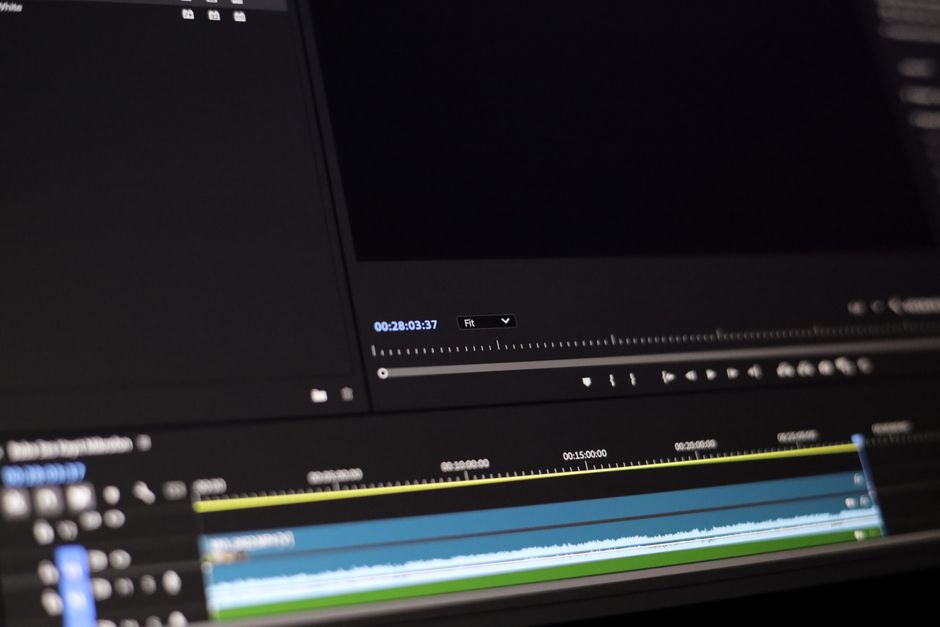
Adobe AI video editing combines Firefly’s browser-based clip generation with Premiere Pro’s timeline tools for creating, extending, searching, and editing footage. Firefly suits new shots; Premiere suits work on existing projects. Free access is limited, and Generative Extend can add up to two seconds of video when a clip meets Adobe’s input requirements.
What does Adobe AI video editing include?
Adobe AI video editing includes distinct tools for generating footage, filling small gaps, finding material, and editing dialogue. The useful first decision is whether you need new material or need to change footage already in a project.
For a new shot, Firefly generates video clips from text prompts or images in a browser-based workspace. Adobe also describes video generation inside Premiere’s Generative Media Tool: it creates video or sound effects in the timeline and adds them as editable clips, so you can continue working in the sequence. Supported models include Firefly and partner models, with availability varying by region and subscription plan.
For existing footage, Premiere offers more than generative tools. Text-Based Editing automatically transcribes spoken footage; editing, rearranging, or deleting transcript text adjusts the corresponding timeline clips. It is included with a Premiere subscription at no additional cost and works with footage that has spoken dialogue. Media Intelligence can search footage by visual descriptions, transcript text, and embedded metadata; its local analysis can reduce the need to scrub through clips, though visual search may miss small details or fast motion.
Can I use Adobe AI video editing for free?
Yes, but free access is limited and does not mean unlimited premium video generation. Adobe says Firefly free users receive a limited daily allotment of generations, and some plans without premium generative access currently include two complimentary video generations. Limits and availability can change.
Paid Firefly plans include monthly generative-credit allotments, and premium video features consume credits. The number of credits used depends on the model and settings, so check the plan and feature details before building a high-volume workflow around generation. In practical terms: use free access to evaluate whether a prompt-based shot works, then confirm the allowance before planning a batch of clips.
Not every AI-adjacent editing feature has the same cost model. Adobe says Text-Based Editing is included with a Premiere subscription at no additional cost, while generative video and sound effects use credits. Treat transcript editing as a timeline capability and generated media as a credit-consuming service; the distinction helps avoid confusing subscription access with unlimited generations.
What is the difference between Firefly video tools and Premiere Pro AI tools?
Firefly is the browser-based starting point for generating a new clip; Premiere Pro is the workspace for shaping footage and generated clips into an edit. Choose based on the job, then move the result into the workflow that handles the next decision.
| Editing job | Best starting point | Why |
|---|---|---|
| Create a new shot from an idea or image | Firefly video generator | Creates clips from text prompts or images in a browser workspace. |
| Generate media within an existing sequence | Premiere Generative Media Tool | Places generated video or sound effects in the timeline as editable clips. |
| Fill a brief pause or timing gap | Premiere Generative Extend | Adds a limited amount of video to a clip’s start or end. |
| Build a rough cut from spoken footage | Premiere Text-Based Editing | Transcript edits adjust the matching timeline material. |
Firefly output duration depends on the selected model; Adobe describes available generated clips as varying up to 15 seconds, with multiple aspect ratios and downloadable video up to 4K. Generative Extend solves a narrower problem: it adds at most two seconds to existing footage. If a sequence needs a new visual idea, generate a shot; if the visual is right but the edit needs a little more time, test an extension.
How do I use Generative Extend to add frames to a clip?
To use Generative Extend, select its tool in Premiere and drag the edge of an eligible timeline clip to extend it. Adobe’s walkthrough is short; the input checks matter more because the video extension is capped at two seconds.
- Check the source clip. Video must be at least two seconds long. Adobe lists eligible resolutions from 360p through 4K UHD, landscape, portrait, square, and custom aspect ratios, and frame rates from 12 to 60 fps.
- Select the Generative Extend tool. In the timeline, position the tool at the beginning or end of the clip you want to lengthen.
- Drag the clip edge. Extend the start or end to request generated frames. Video can be extended by up to two seconds; audio clips must be at least three seconds long and can be extended by up to ten seconds.
- Review and adjust. Generated frames are labeled. You can regenerate them or revert the extension if the result does not fit the cut.
There are format limits to keep in view. Adobe says extensions above 30 fps are generated at 30 fps, and generated extensions are 8-bit SDR. The feature requires an internet connection because it uses Firefly in the cloud. It is a trim-level repair for a brief gap or transition—not a way to create a longer scene or preserve every source format.
What should I check if the feature is missing or generation fails?
Start with the documented requirements: verify that the source meets the minimum clip duration, supported resolution and frame-rate range, and that the computer is online. For Generative Media Tool video generation, model availability varies by region and subscription plan, and usage depends on available credits. If the feature remains absent or a model will not load, record the exact feature, plan, and error shown, then consult Adobe support or community troubleshooting; the supplied documentation does not establish one universal fix for missing tools or model-loading errors.
For privacy-sensitive projects, separate the tools by what Adobe says they do. Adobe says Premiere Media Intelligence analysis and searches run locally, and footage, analysis data, and searches do not leave the computer. Adobe’s content-analysis FAQ says customer content is not analyzed to train generative AI models unless the customer chooses to submit it to Adobe Stock. Separately, Adobe says prompts, media, and reference frames used for Premiere generation are not used to train Adobe or partner AI models.
Frequently Asked Questions
Can Adobe AI generate video inside Premiere Pro?
Yes. Premiere’s Generative Media Tool can create video or sound effects in the timeline and add them as editable clips. Video generation can use Firefly and supported partner models; availability varies by region and subscription plan, and generations consume credits.
What are the limits of Adobe’s AI video tools for resolution, aspect ratio, and clip length?
For Generative Extend, Adobe lists eligible input resolutions from 360p to 4K UHD and supports landscape, portrait, square, and custom aspect ratios. Input video can be 12–60 fps, but extensions above 30 fps are generated at 30 fps; generated extensions are 8-bit SDR and capped at two seconds. Firefly generated clip length depends on the selected model, with available outputs described as varying up to 15 seconds.
Does Adobe use my footage to train its AI models?
Adobe says it does not analyze customer content to train generative AI models unless the customer chooses to submit content to Adobe Stock. For Premiere’s Media Intelligence search, Adobe says footage, analysis data, and searches stay on the computer.
When should I use an AI-generated clip instead of extending or editing existing footage?
Generate a clip when the project needs a new shot from a prompt or reference image. Use Generative Extend for a short timing gap at a clip’s beginning or end, and use Text-Based Editing when the footage contains spoken dialogue and you need to assemble or trim it through transcript text.
Sources
- Adobe Help Center — Generative Extend overview in Premiere
- Adobe Help Center — Add frames using Generative Extend in Premiere Pro
- Adobe Help Center — Adobe Premiere Generative Media Tool FAQ
- Adobe Firefly — AI video generator
- Adobe Help Center — Generative credits FAQ
- Adobe Help Center — Overview of Text-Based Editing in Premiere
- Adobe Help Center — Media intelligence and Search panel FAQ in Adobe Premiere
- Adobe Help Center — Content analysis FAQ for Creative Cloud and Document Cloud
Related reading

What Are the Best Boarding Schools in the US?
Compare the best boarding schools in the US by academic fit, student support, campus culture, affordability, and admissions realism.

Should You Directly Apply for Jobs or Use Indeed?
Directly apply for jobs on the employer’s site when verified; use Indeed quick apply when it clearly reaches the right employer.